買了 144Hz 卻還在用 60Hz?Windows 必做的 3 大電競設定
你花了大錢買了 144Hz 甚至 240Hz 的螢幕,顯卡也換了 RTX 40 系列,但為什麼玩起來還是覺得哪裡怪怪的?
告訴你一個恐怖故事:有超過 30% 的玩家,買了高刷新率螢幕,卻一直用 60Hz 在玩遊戲。 今天我們手把手帶你檢查 Windows 裡最關鍵的幾個設定,解放你硬體的真正實力。
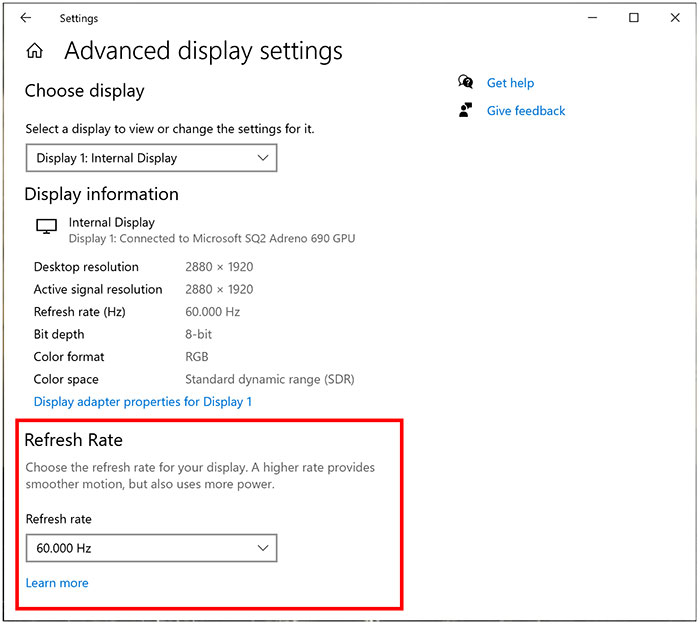
1. 最低級的失誤:檢查 Windows 顯示設定
插上新螢幕後,Windows 預設通常會跑在 60Hz。你必須手動把它改過來。
- 路徑: 桌面右鍵 > 顯示設定 > 進階顯示設定 > 重新整理的頻率。
- 檢查: 這裡的數字是 60 還是 144/165?請毫不猶豫地選最高的那個。
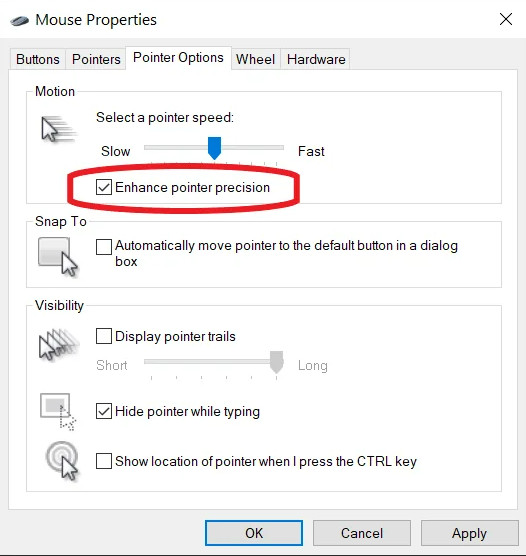
2. 關閉「滑鼠加速」 (Enhance Pointer Precision)
這是 FPS 玩家的大忌。Windows 預設會開啟「增強指針精確度」,這會導致你的滑鼠移動距離和游標移動距離「不線性」。你甩槍越快,它幫你加越多速,導致肌肉記憶永遠練不準。
- 路徑: 控制台 > 滑鼠 > 指針選項。
- 動作: 把「增強指針的準確性」取消勾選。
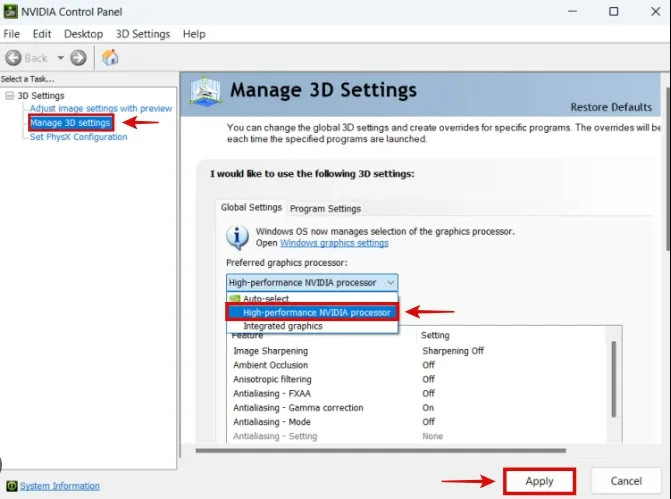
3. NVIDIA 控制面板:慣用的最大效能
為了省電,顯卡有時候會偷偷降頻偷懶。但在打競技遊戲時,我們要的是全速運轉。
- 路徑: 桌面右鍵 > NVIDIA 控制面板 > 管理 3D 設定。
- 動作: 找到「電源管理模式」,改為「慣用的最大效能」。
Bought a 144Hz Monitor but Playing at 60Hz? 3 Must-Do Settings
You spent a fortune on a 144Hz or 240Hz monitor and an RTX 40 series card, but why does it still feel "off"?
Here's a horror story: Over 30% of gamers buy high-refresh monitors but play at 60Hz for years without knowing. Today, let's walk through the critical Windows settings to unlock your hardware's full potential.
1. The Rookie Mistake: Windows Display Settings
By default, Windows often sets new monitors to 60Hz. You MUST change this manually.
- Path: Right-click Desktop > Display Settings > Advanced Display > Refresh Rate.
- Check: Is it 60Hz or 144Hz/165Hz? Pick the highest number available.
2. Disable "Mouse Acceleration"
This is the enemy of FPS gamers. Windows enables "Enhance Pointer Precision" by default, which makes your cursor movement non-linear based on speed. It ruins muscle memory.
- Path: Control Panel > Mouse > Pointer Options.
- Action: UNCHECK "Enhance pointer precision".
3. NVIDIA Control Panel: Max Performance
To save power, your GPU might downclock itself. In competitive gaming, we want full power all the time.
- Path: Right-click Desktop > NVIDIA Control Panel > Manage 3D Settings.
- Action: Set "Power management mode" to "Prefer maximum performance".
All set? Let's verify!
After tweaking, your screen should show sharp UFOs, and your mouse should feel raw and precise.
Run UFO Test Now